%201%20(1).png)
A Guide to Using Bottom Sheets in UI/UX Design
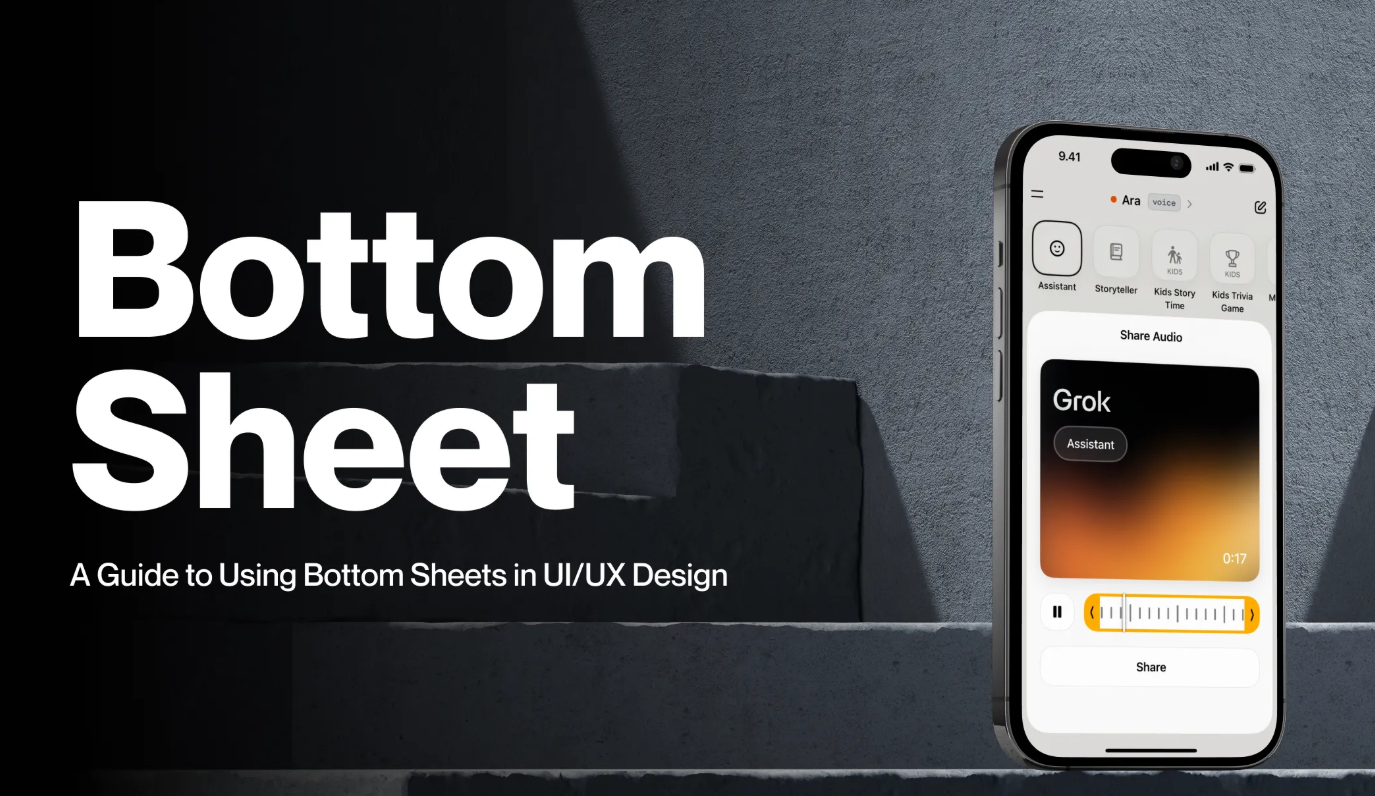
Bottom Sheets have become a staple in many mobile apps. This element is highly efficient and doesn’t disrupt the main application flow. Bottom Sheets can serve multiple functions while keeping the user interaction smooth and uninterrupted.
What is a Bottom Sheet?
Have you ever seen a UI element slide up from the bottom of the screen when you select a certain option in an app? That’s what’s called a Bottom Sheet.
The function of a Bottom Sheet is simple yet important — it provides additional information or actions without disrupting the main user flow or requiring a page change. Everything stays within a single view.
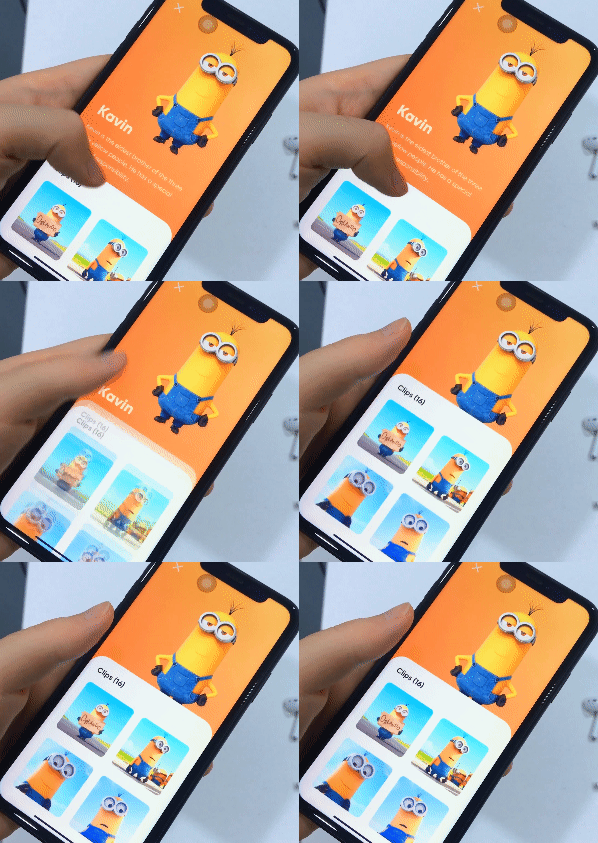
Proper Use Cases for Bottom Sheets
Some common situations where Bottom Sheets are often used:
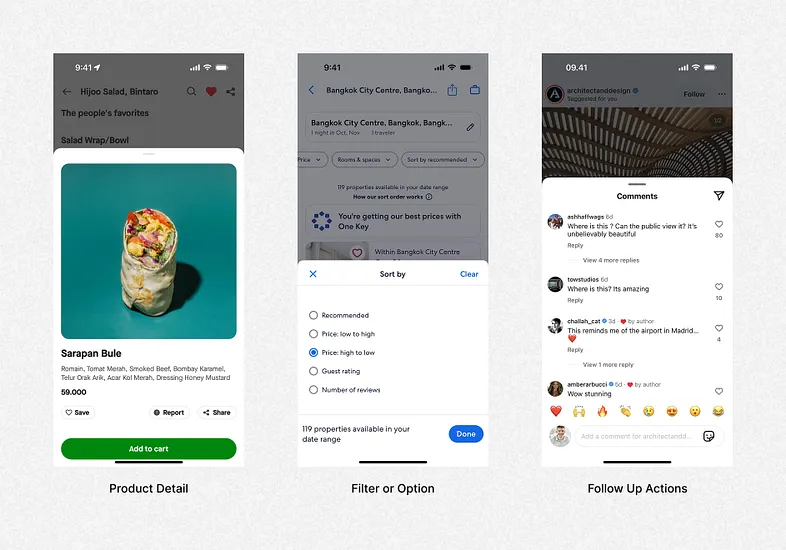
- Expanding Main Content
For content such as details, filters, or minor actions that support the main page but aren’t important enough to require a separate screen.
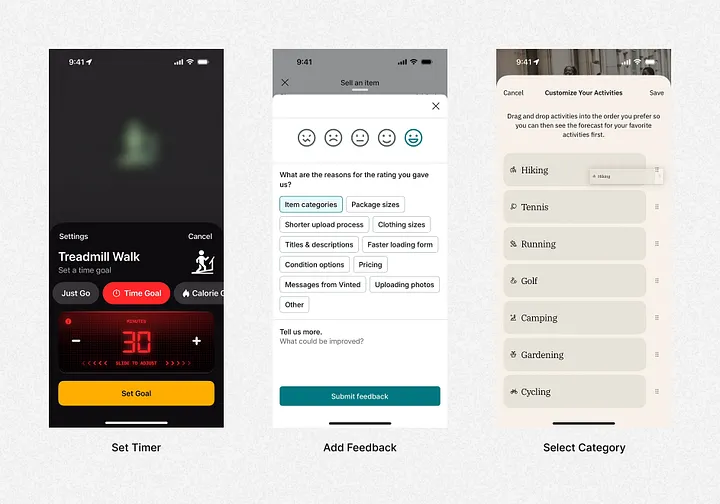
- Personal Settings Options
Bottom Sheets are well-suited for presenting settings that don’t require a full screen but are important for user personalization.
- Contextual Functions
Bottom Sheets can be used to display actions directly related to the element being viewed, such as checkout or sharing.
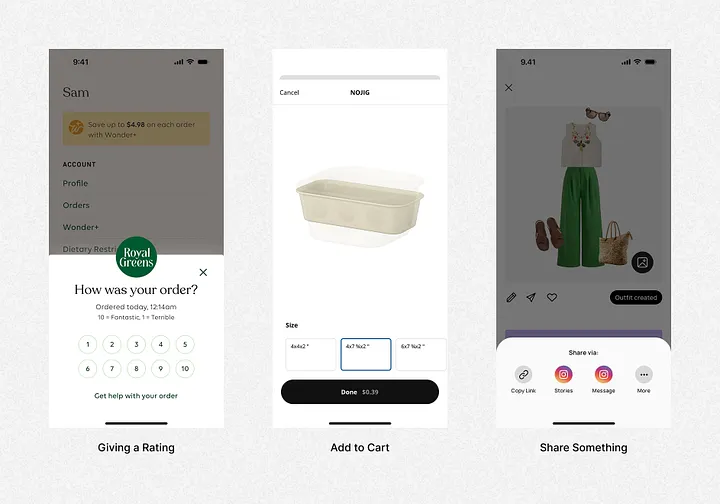
- Notifications and Success Messages
Bottom Sheets can be used to display confirmation messages or success notifications. This provides immediate feedback to users and reinforces a positive experience.
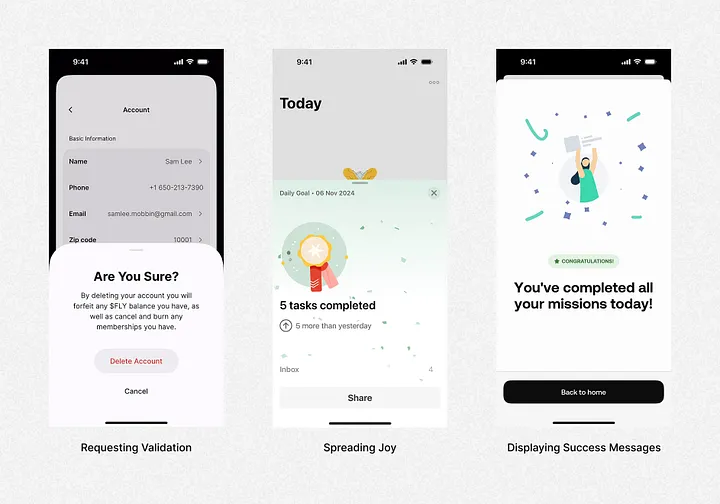
User Psychology Behind Bottom Sheets
Several psychological principles that can be associated with Bottom Sheets:
- Quick Access
Bottom Sheets are designed to provide quick access without disrupting the flow. Humans naturally seek the easiest way to get what they need, and Bottom Sheets fulfill that need. - Simplify User Thinking
Bottom Sheets present just the right additional information without breaking the user’s focus. With clear context and a concise layout, they help reduce cognitive load. - Smooth Navigation
Bottom Sheets offer a fast and intuitive navigation experience, making users feel more comfortable while exploring the app. This aligns with the human need to move efficiently in the digital world. - Open Loop Effect
Bottom Sheets can be used to display delayed information or actions, creating a psychological nudge for users to return and complete them. This fosters a stronger sense of engagement with the app. - Design with Empathy
Delivering relevant content at the right moment makes the user experience feel more personal and considerate. Bottom Sheets enable this approach while keeping the flow simple and comfortable.


Bottom Sheet: Do This, Avoid That!
Bottom Sheets are a smart solution for presenting additional information without cluttering the screen. But if not designed properly, they can lead to a less comfortable user experience. Here are some key do’s and don’ts to make your Bottom Sheet design more effective.
- Visual Layout
Not all information carries the same weight. Use appropriate sizing and colors to help users identify which tasks are most important to complete first. - Ease of Access
Accessibility matters! Make sure your Bottom Sheet design remains easily accessible on screen to ensure comfort for all users. - Text Length
Keep text short and to the point so the Bottom Sheet stays focused, easy to read, and doesn’t overwhelm the user. - Over Designing
Bottom Sheets are meant to provide additional information — avoid making them overly complex, as too much detail can burden the user. - Triggers and Response
Bottom Sheets should appear quickly and provide instant feedback when opened. Smooth transitions and consistent animations enhance the perceived quality of user interactions with your app.
Conclusion
Bottom Sheets are smart UI elements that improve app usability by presenting extra content or actions without disrupting the user flow. When designed well — with clear layout, quick access, and smooth transitions — they enhance engagement, reduce cognitive load, and create a seamless user experience.

Our awards & recognitions.














Ready to discuss your project with us?
Chat with Us